On this page · 7 sections
- Why storage can run while sales stop
- How to spot it in your payout sheet
- Worked example (illustrative numbers)
- What to do: checklist
- Doing it without spreadsheets
- Frequently asked questions
- Bottom line
Updated 18 October 2026 · By Ashok Sachdev · Line names as they appear in Blinkit's payout workbooks in October 2026. Seller experiences are paraphrased from public seller discussions; check your own seller panel and sheets.
Quick answer
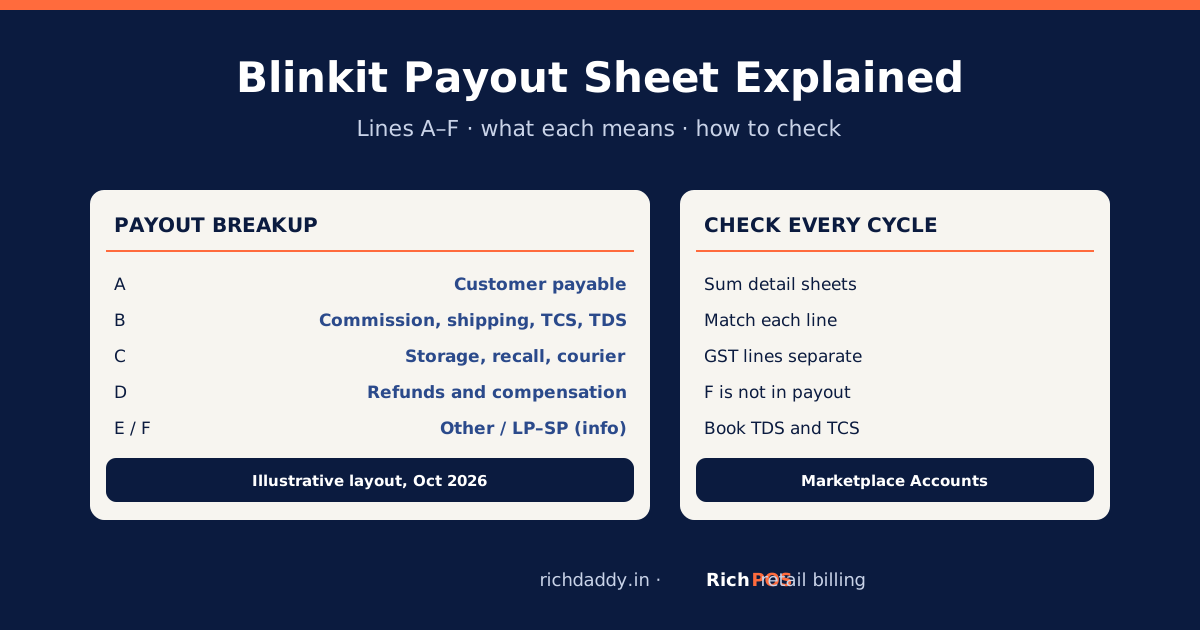
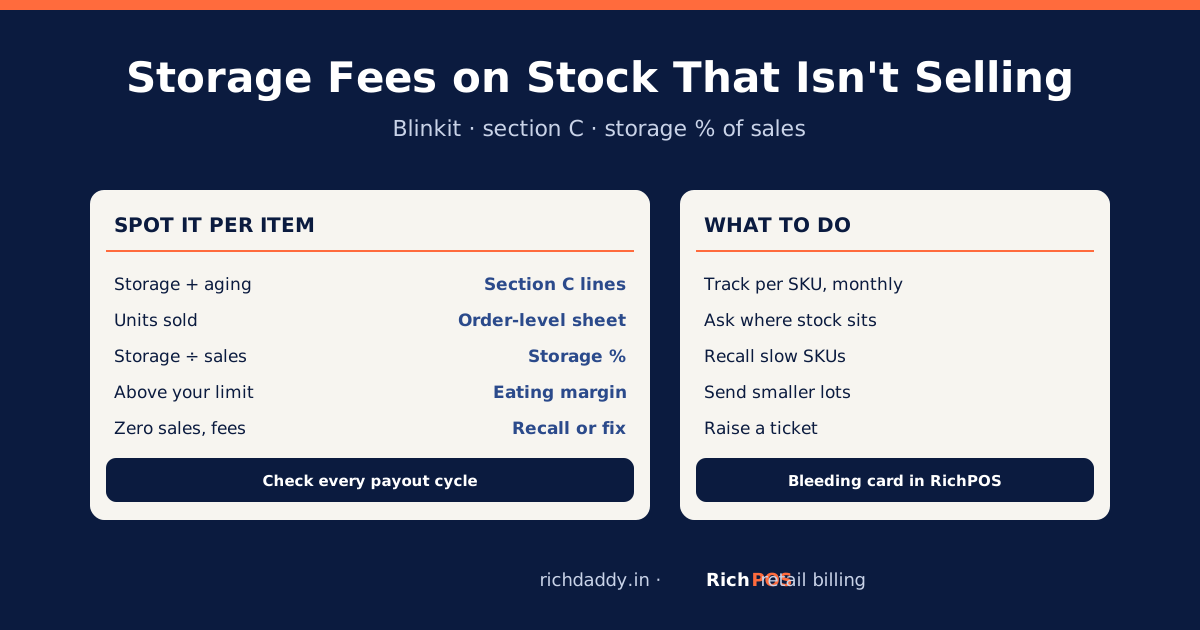
Storage fees on stock that isn't selling show up in section C of your Blinkit payout: upfront storage, storage (aging) and recall charges, each with GST. To spot them, take each item's section C charges for the month and divide by that item's sales; an item whose storage is a high share of its sales, or that has storage charges but almost no units sold, is costing you money. Ask where that stock is sitting, recall it or send smaller quantities, and raise a ticket for charges on stock you cannot sell.
Why storage can run while sales stop
Sellers in public discussions describe a common pattern: stock goes into a feeder warehouse and is spread across many darkstores; a darkstore that sells nothing for a while stops getting that item; the number of darkstores carrying the item shrinks; and storage keeps being charged on stock that is no longer in front of customers. Sellers also report that reaching a higher performance level does not by itself guarantee wider distribution. We cannot confirm Blinkit's allocation rules, and they can change, so treat this as a pattern to check for in your own sheets, not a rule.
How to spot it in your payout sheet
| What to look at | Where | Warning sign |
|---|
| Upfront storage (C1) | Inventory charges workbook | Large inward of an item that then sells little |
| Storage / aging (C3) | Inventory charges workbook | Same item charged cycle after cycle |
| Recall (C2) | Inventory charges workbook | Recalls you did not ask for, or charges after a recall |
| Units sold | Order-level sheet | Few or zero units for the item in the cycle |
| Storage % of sales | Your calculation: storage ÷ item sales | Higher than the limit you set |
The payout layout is explained line by line in Blinkit payout sheet explained, and the charges themselves in Blinkit storage and aging charges.
Worked example (illustrative numbers)
| Item, one month | Sales (before GST) | Storage + aging + recall | Storage % of sales |
|---|
| Item A, steady seller | ₹40,000 | ₹1,200 | 3% |
| Item B, slowing | ₹6,000 | ₹1,500 | 25% |
| Item C, almost no sales | ₹500 | ₹900 | 180% |
The numbers are made up to show the method. With a 20% limit, items B and C are eating margin; item C costs more to store than it sells. Model your own items with the free Blinkit payout calculator.
What to do: checklist
| Step | Action |
|---|
| 1 | Every month, list each item's section C charges and units sold side by side. |
| 2 | Work out storage as a % of each item's sales; pick a limit (for example 20%) and flag items above it. |
| 3 | For flagged items, check your seller panel for where the stock sits and how many darkstores carry it. |
| 4 | Ask your Blinkit contact about distribution before sending more of that item. |
| 5 | Compare the recall charge with the storage you expect to keep paying; recall if storage will cost more. |
| 6 | Send slow items in smaller lots, matched to recent sales; set reorder points with the stock reorder calculator. |
| 7 | Raise a ticket, with the sheet rows, for storage charged after a recall or on stock you cannot see live. |
| 8 | Keep the workbooks and ticket numbers; they are your evidence if you dispute a charge later. |
Doing it without spreadsheets
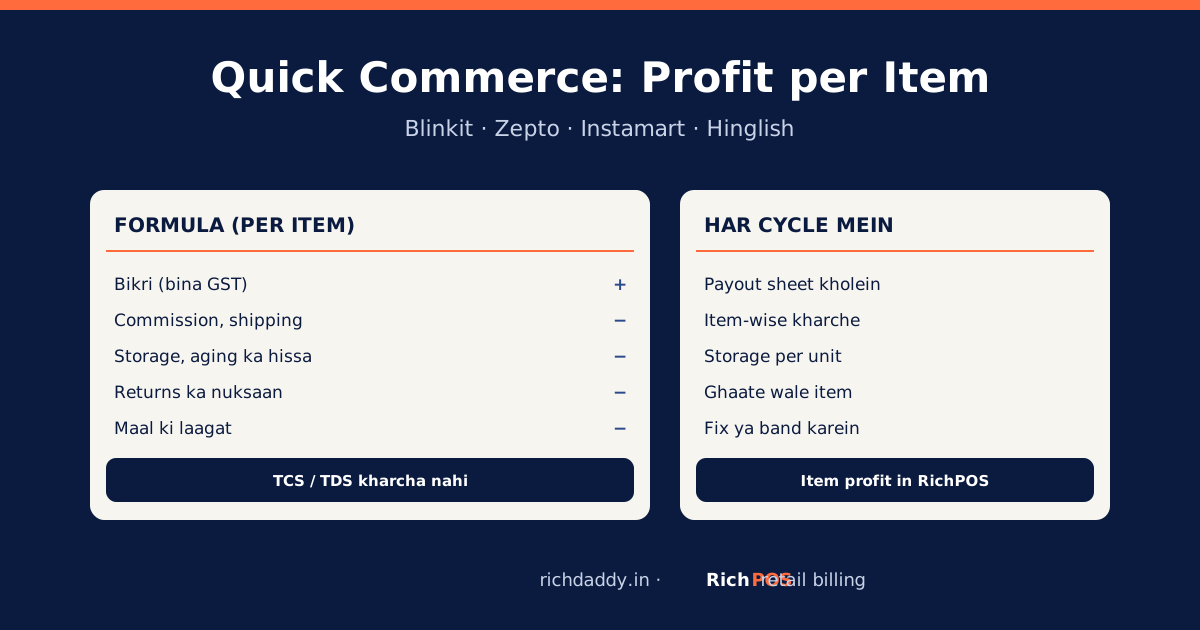
In RichPOS Marketplace Accounts, the item profit view shows each item's profit after every Blinkit fee and your cost. Items whose storage is above a limit you set (20% of the item's sales by default) are flagged as eating margin, and a "Where you are bleeding money" card lists the items that lost money in the cycle. See item profit for Blinkit sellers.
Bottom line
Storage is charged on stock, so an item that stops selling keeps costing you. Put storage next to units sold for every item every month, act on the worst ones, and keep your evidence. To see it per item, see RichPOS Marketplace Accounts or start a free trial.
FAQ
Frequently asked questions
Why am I paying Blinkit storage fees when my item is not selling?
Storage is charged on stock held in Blinkit's warehouses, not on sales. If an item stops selling, for example because fewer darkstores carry it, storage and aging charges can continue on the unsold stock until you recall it or it sells.
Where do storage fees appear in the Blinkit payout sheet?
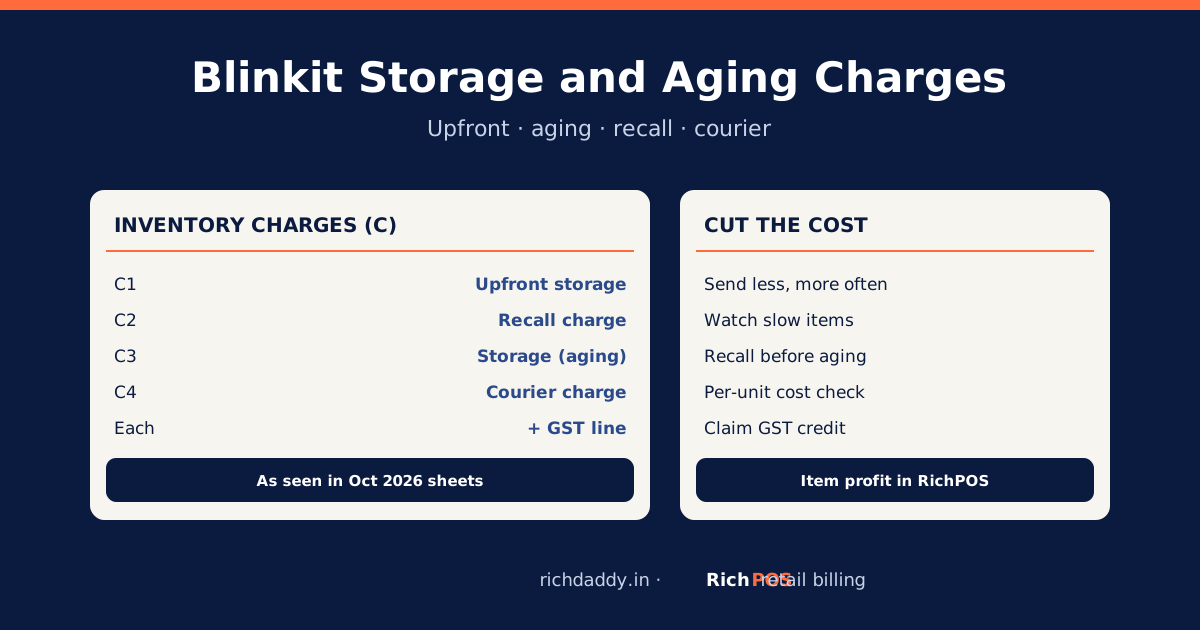
In section C: upfront storage, recall charge, storage (aging) and courier charge, each with a GST line. The inventory charges workbook lists the item-level detail.
How do I know if storage is eating my margin?
Divide an item's storage, aging and recall charges for the month by its sales for the month. If that share is above the limit you set, or the item has storage charges and few or no units sold, it is eating your margin.
Should I recall slow stock from Blinkit?
Compare the recall charge with the storage you expect to keep paying on that stock. If storage will cost more than the recall and the item is not selling, recalling is usually cheaper. Check the current rules in your seller panel.
Does a higher seller level guarantee more darkstores?
We cannot confirm that it does. Sellers report that a higher level alone does not guarantee wider distribution, so track your darkstore count and sales per item rather than relying on the level.
Free tool: use the Excel templates for a stock register, udhaar khata, cash book or GST purchase register. Free; enter your WhatsApp number to download.
ASWritten by Ashok SachdevFounder, RichPOS Software, Ahmedabad. We build RichPOS for Indian shops and write these guides from what shop owners ask us every day. Facts on tax rates and prices are dated; confirm GST matters with your CA. Questions? WhatsApp us.
Make GST bills in seconds with RichPOS
Billing, stock, WhatsApp bills and GST reports in one app. Free 30-day trial with no card, then ₹99/month for 3 months and ₹199/month after.